
How to deactivate license key and use it on another device
Use these steps if you want to use the Akrivi plugins on another computer or if you see “Error 5 – Activation Failure.”
Step 1: Open the Akrivi plugin

- Open Adobe Illustrator
- Go to Windows > Extensions > Akrivi Plugin
Step 2: Deactivate the License
-
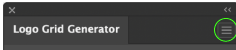
Click the menu icon (☰) in the top-right corner
-
Select Deactivate License
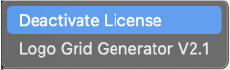
- Click OK to confirm

- Once successful, you will be asked to 'Enter your license key'. Ignore this and close the extension.

Step 3: Activate on your new device
- Open Adobe Illustrator on your new computer
- Open an Akrivi plugin
- Enter your license key to activate
How can I find my license key?
You can find your license key in the original email you received when signing up.
The subject of that email is “Here’s Your License Key & Download.”
Open the email, copy your license key, and paste it into the plugin to activate it.
Please Note:
- Each license key allows 2 active devices at the same time
- You must deactivate one device before activating a third
- You can repeat this process whenever needed
- This works only if you still have access to at least one of your activated devices
No longer have your old devices?
If you no longer have access to your old device or continue to see activation errors, please contact us and we’ll help reset your license.