
Plugin Interface Too Small or Too Large
If the Akrivi plugin/ extension interface appears too small or too large, this is usually caused by your monitor size and system display resolution settings.
Example below of Akrivi Gridit interface too small to use
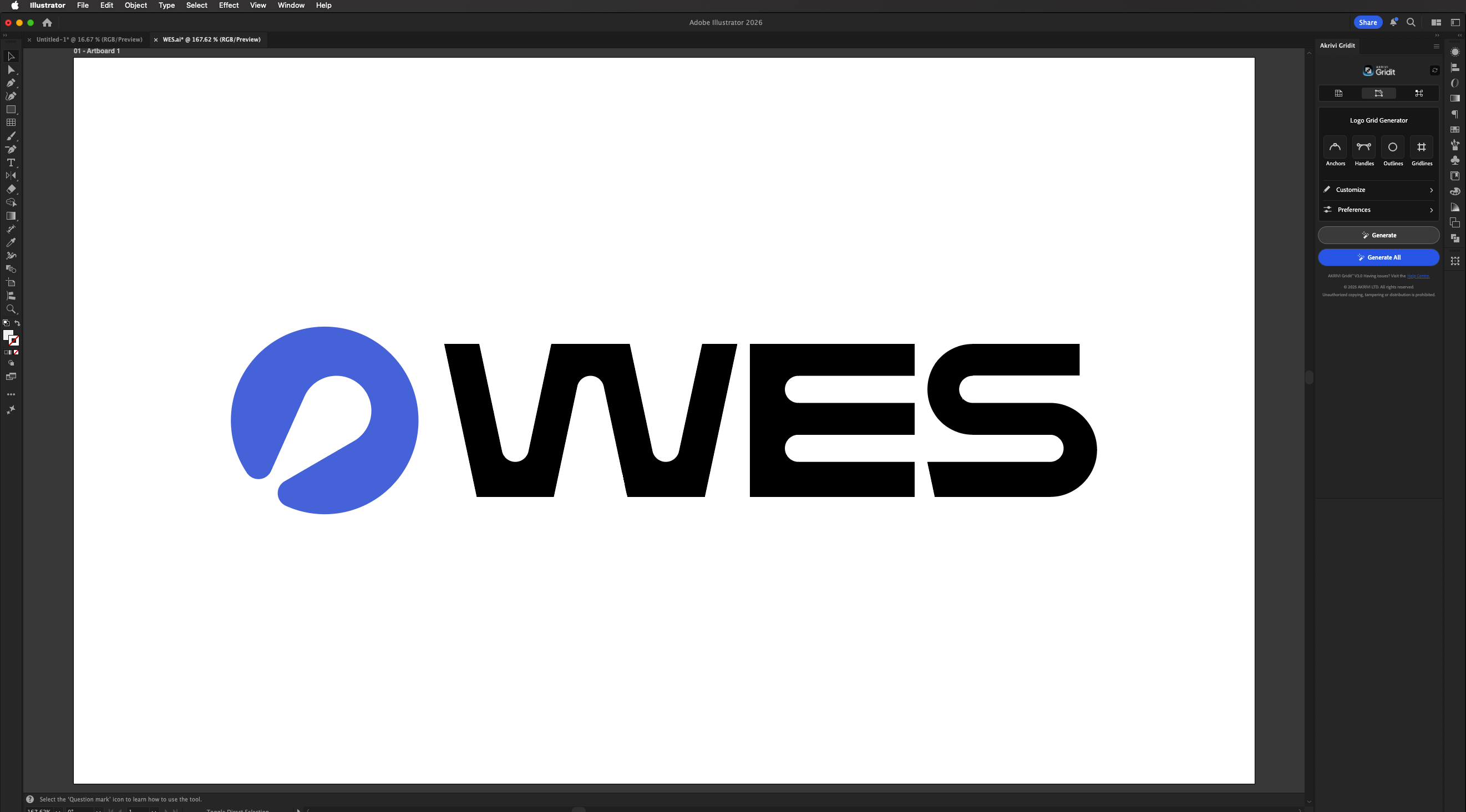
This is more common on larger or high-resolution monitors, where scaling can affect how panels and plugins appear inside Adobe Illustrator.
How to Fix It
You’ll need to adjust your system display settings to improve the plugin interface size.
For Mac
- Open System Settings
-
Go to Displays
Under Resolution, select Scaled
Choose a setting such as:
- Larger Text (to make the interface bigger)
- Or test different scaled options to find the best fit
- Return to Adobe Illustrator and check the plugin size (usually you will see the updates being made live)
👉 Click Here to Watch Video Tutorial for Mac
For Windows
-
Right-click on your desktop and select Display settings
Under Scale and layout:
- Adjust the Scale (e.g. 100% → 125% or 150%)
- You can also adjust Display resolution if needed
- Reopen Adobe Illustrator and check the plugin interface (usually you will see the updates being made live)
👉 Click Here to Watch Video Tutorial for Windows
Important Notes
- Changes affect your entire system, not just Illustrator
- You may need to restart Adobe Illustrator after adjusting settings
- Try a few scaling options to find the best balance for your screen